.jpg?width=200&height=45&name=Superb_Logo_RGB_Colour_Magic_Black%20(1).jpg)
Booking statuses track a reservation from the moment it is received until the guest leaves, and each booking status has its own colour on the dashboard.
Change a booking status
- Click the reservation to open the quick view.
- Select the booking status you want from the booking status options.
The colour of the reservation updates automatically.
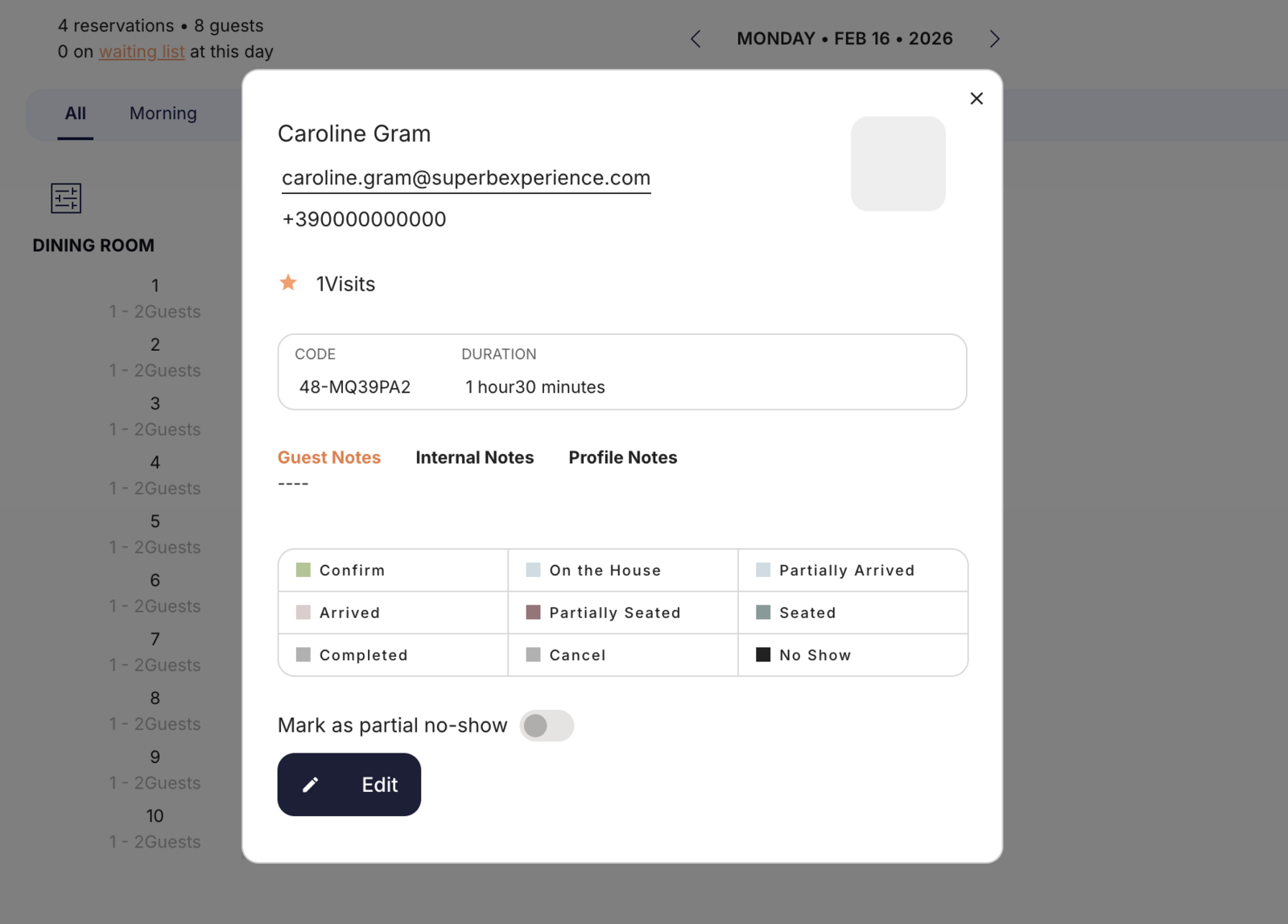
What each booking status means
- New Booking: the reservation has been received but not yet confirmed. Every new reservation is assigned this booking status automatically.
- Confirmed: the reservation has been confirmed by the guest or by the restaurant. The status is set automatically when reconfirmation emails are enabled and the guest confirms the reservation, or manually when you click Confirm (useful when you call guests to confirm).
- On the House: the reservation is complimentary and the guest does not have to pay. Use On the House for VIP guests, promotional bookings, and special occasions where you offer a free meal.
- Partially Arrived: some guests in the party have arrived, but not the whole party. Use Partially Arrived for larger groups, or when guests wait in a bar or lounge area before being seated.
- Arrived: the whole party has arrived but is not yet seated. Use Arrived to show that guests are on the premises but not yet at their table.
- Partially Seated: some guests are seated and the rest of the party has not arrived yet. Use Partially Seated to keep track of course and service timing for the table.
- Seated: the whole party is seated at the table and service can proceed normally.
- Completed: the reservation is finished and the table is free again. Use Completed when guests leave before their scheduled end time, so the table becomes available for further online and manual bookings.
- Cancel: the reservation is cancelled. Use Cancel when a guest calls to cancel, or when the reservation should be removed from the dashboard.
- No Show: the guest did not arrive and did not cancel.
Mark a partial no-show
A partial no-show means some guests in the party did not arrive, but the reservation still went ahead.
- Open the reservation.
- Use the Mark as partial no-show toggle at the bottom of the reservation.
No Show status and no-show fees
Setting a reservation to No Show does not charge a no-show fee to the guest's credit card. If you work with no-show fees, the charge has to be processed separately.
Keep booking statuses accurate during service
- Update booking statuses throughout service to keep an accurate view of the floor and to prevent overbooking.
- Confirm reservations proactively, either with the booking reconfirmation email or manually.
- Set reservations to Completed as soon as guests leave, so the table capacity is released for further bookings.
- Use Arrived and Seated to coordinate timing between front of house and the kitchen.