.jpg?width=200&height=45&name=Superb_Logo_RGB_Colour_Magic_Black%20(1).jpg)
Turn on gift cards in Partner, set the amounts and expiration, build a custom gift card template, and create an experience that can be sold as a gift card.
What you need
- A Partner account with access to Settings
- Images and text you have the rights to use, if you build a custom gift card template
Turn on gift cards and set amounts and expiration
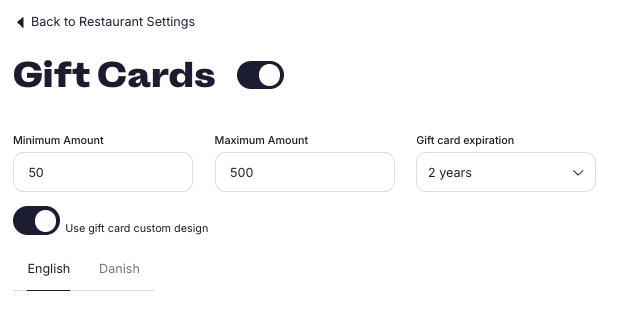
- Open the side bar menu on the left in Partner, click Settings, then click Gift cards.
- Toggle gift cards ON.
- Enter a minimum and a maximum gift card amount. Both amounts are optional.
- Set Gift card expiration, the length of time a gift card stays valid. The available options range from 3 months to 5 years.
- Click Save.
Check the legal requirements in your country before setting the expiration. Some countries set a minimum validity period for gift cards.
Turn on the custom gift card design
The default gift card uses a basic template. Turn on Custom Design to edit the gift card layout and text.
- Open the side bar menu on the left in Partner, click Settings, then click Gift cards.
- Toggle Custom Design ON. An edit window opens.
Build the custom gift card template
- Choose the language template you want to edit. Partner shows English and the localised language set for the account.
- Select the template and confirm the template overwrite.
- Add and edit visual elements, such as images, background images, and background colours.
- Edit the wording of the template to match the tone of voice of the business.
- Add a booking link to the button, or repeat the gift card code on the button.
Keep the template text that states whether the gift card is for an experience or for a fixed amount.
Add the required information to the gift card template
Include the following elements in the gift card template:
- Gift card code token — every gift card gets a unique code. This token is mandatory.
- Restaurant or business address
- Business information
- Expiration date and issue date
- Your logo
Add optional information to the gift card template
- Browse the available tokens and add the ones that are useful for guests.
- Tokens that are not legally required still give guests helpful information, such as booking details.
Save the custom gift card template
- Confirm that you have the right to use every image and all content in the template. This confirmation is required before saving.
- Click Save.
- If a required token is missing, Partner shows an alert. Click Fix My Template to add the missing required tokens to the bottom of the template.
- Move the added tokens to the correct place in the design.
- Click Save again.
A gift card template can be edited again at any time.
Preview the gift card before going live
- Open the gift card template in Settings → Gift cards.
- Click Get Preview. Partner downloads a PDF sample of the gift card.
- Review the PDF sample to see the gift card as a guest receives it.
Create an experience that can be sold as a gift card
Use an experience when the gift card should cover a specific package rather than a monetary amount.
- Go to Settings → Online Reservations → Experiences in Partner.
- Click Add Experience.
- Enter a name, price, and description for the experience. Enter the name and description in every language enabled for the account, so guests see the experience in their own language.
- Check Enable for gift cards.
- Check Hide on GX.
- Click Save.