.jpg?width=200&height=45&name=Superb_Logo_RGB_Colour_Magic_Black%20(1).jpg)
Set up rooms and tables in Superb so every reservation can be assigned to a real seat in your restaurant.
What you need
- Access to your Superb Partner account
- Permission to open Settings in Partner
Create rooms
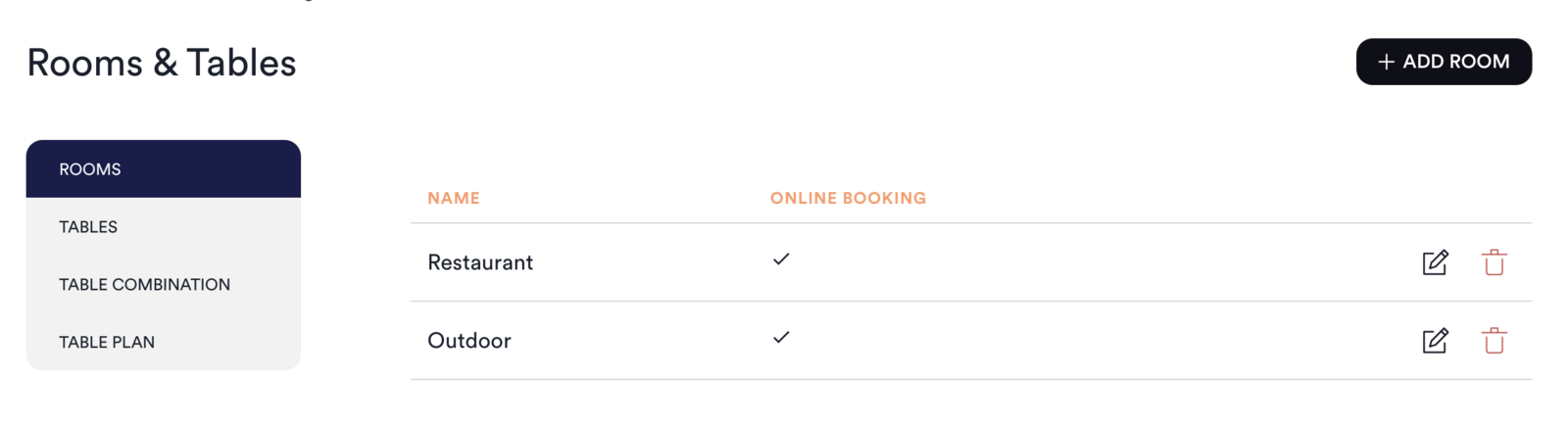
Rooms are the areas guests are seated in, for example Bar, Lounge, or Main Dining Room.
- Open the side bar menu in the top left corner and click Settings.
- Go to Rooms.
- Click Add Room.
- Name the room.
- Tick Online Booking if guests can book the room online.
- Tick Show Online if guests should see the room when booking.
- Tick Active.
- Click Save.
- Repeat for each room in your restaurant.
To edit a room, click the pencil icon next to the room. To reorder rooms, drag a room to a new position in the list.
Add tables
Every table belongs to one room, so create your rooms before you add tables.
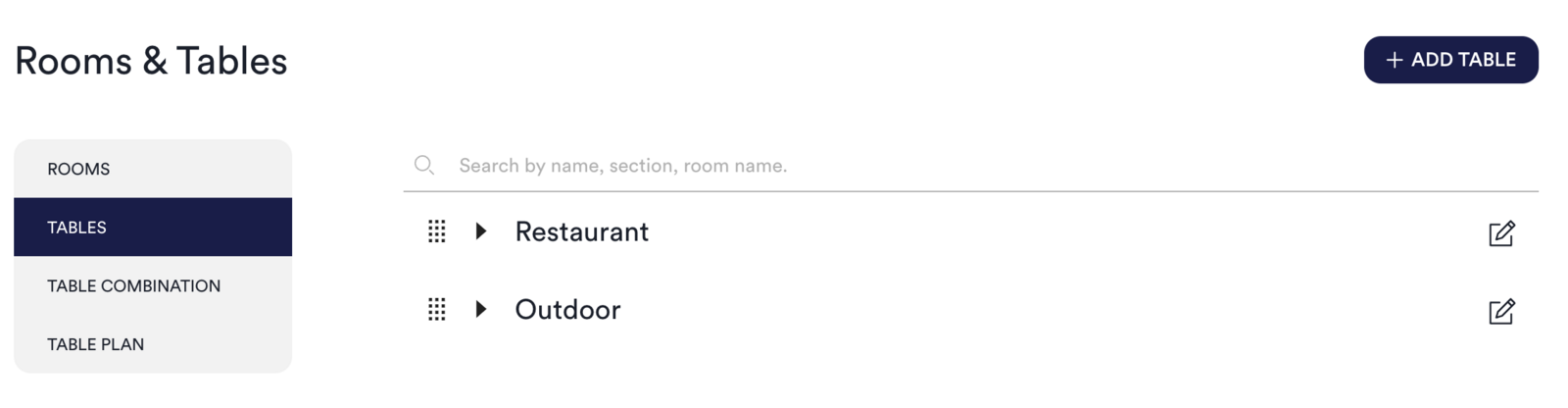
- Go to Tables.
- Click Add Table.
- Name the table. The table name is for internal use only and is not shown to guests.
- Set Min and Max guests for the table.
- Choose the Room the table belongs in.
- Set Priority (optional). A higher priority means the table is booked first.
- Choose Shape (optional).
- Tick Active.
- Tick Book Only in Combination if the table should never be booked on its own.
Create table combinations
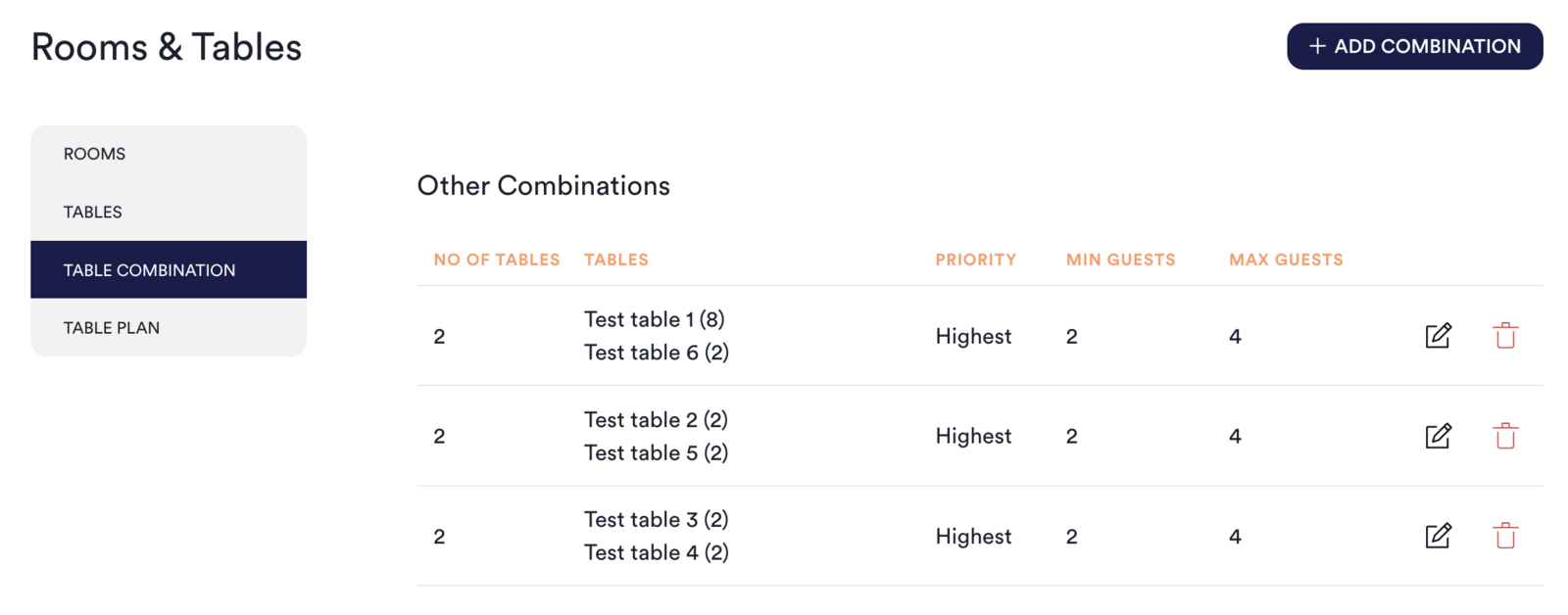
A table combination lets two or more tables be booked together as one larger table.
- Dynamic combinations: the selected tables can be joined in many different ways.
- Regular combinations: the selected tables are always joined as one fixed group.
- Go to Table Combination.
- Click Add Combination.
- Select the tables to combine.
- Set Min and Max guests for the combination.
- Set Priority (optional).
- Tick Active.
- Click Save.
Build your table plan
The table plan is the visual floor plan your team uses during service.
- Go to Table Plan.
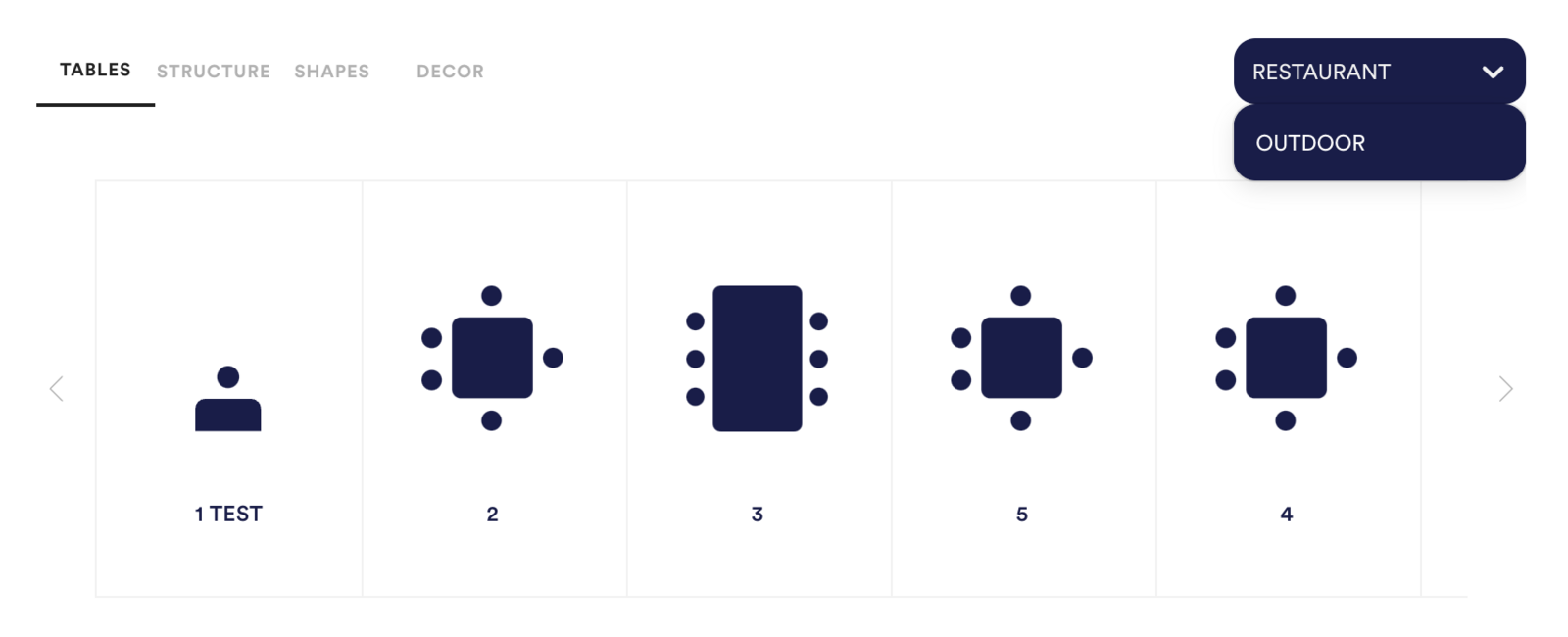
- Choose a Room from the dropdown.
- Drag and drop Tables, Walls, and Doors into the layout.
- Double-click a table to edit the table name, change the table size, or rotate the table.
- Add Shapes and Decor, such as plants or sofas.
- Repeat for each room.
To open the finished table plan during service, go to Dashboard → Table Plan.