.jpg?width=200&height=45&name=Superb_Logo_RGB_Colour_Magic_Black%20(1).jpg)
Enable eFattura (electronic invoicing) in the Superb POS app through the Get Your Bill (GYB) integration, link the account to a GYB profile, and sign the GYB contract.
What you need
- A GYB licence for the eFattura integration, supplied by your Superb contact. If you have not received a licence, email support@superbexperience.com
- The iPad that acts as the till and is connected to the Epson fiscal printer
- The company details from your visura camerale (company registration extract)
- A PC or iPad with Google Chrome for signing the GYB contract
Enable the eFattura integration in the Superb POS app
Enable eFattura on the device that acts as the till and is integrated with the Epson fiscal printer.
- Open the Superb POS app on that device.
- Tap the Backoffice icon in the top left corner.
- In the drop-down menu, choose Settings.
- Choose E-Fattura.
- Turn on e-Fattura enabled.
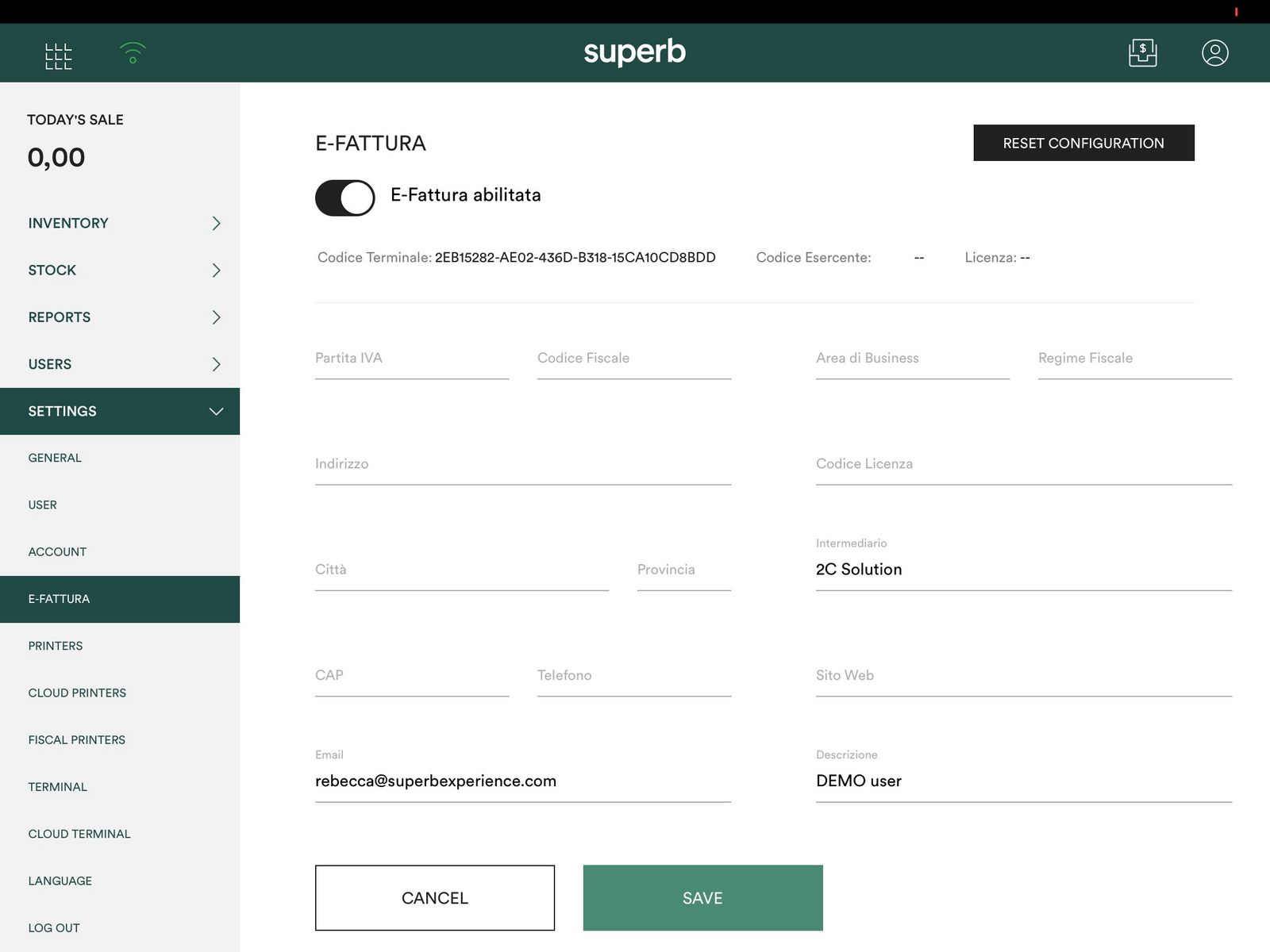
Fill in the company details for eFattura
Complete every field with the details of the company. All fields are required.
- Under Area di Business (business area), select the category Ristoranti (restaurants).
- Under Regime Fiscale (tax regime), select the first option, RF01 Ordinario.
- Under Denominazione (company name), enter the company name exactly as it appears on the visura camerale (company registration extract).
- Under Email, enter an email address for creating the profile. The address must not be a PEC address.
- Under Indirizzo (address), enter the address of the company's registered office.
- Tap SAVE.
To change any of these fields after saving, contact your Superb contact or email support@superbexperience.com. The fields cannot be edited in the app.
Link the Superb POS account to your GetYourBill profile
After eFattura is enabled in the app, three codes appear at the top of the in-app registration page: Codice Terminale (terminal code), Codice Esercente (merchant code), and Licenza (licence).
- Go to the GYB registration page: https://web.getyourbill.com/it/#/register
- Register with the same email address entered when enabling eFattura in Superb POS.
- Verify the email address using the verification email you receive.
- Return to https://web.getyourbill.com/it/#/register
- Log in with the credentials you created.
- Select the merchant type Esercente (merchant).
- Enter the three codes shown on the registration page of the Superb POS app: Codice Terminale, Codice Esercente, and Licenza.
The GYB profile is created once the three codes are accepted.
Set the starting invoice number for GYB invoicing
GYB invoicing starts by default from invoice number 1. Sequential invoice numbering is not a legal requirement, but many accountants prefer the numbering to continue from the last invoice issued.
- To change the invoice numbering, send the number of the last invoice issued to your Superb contact before activation.
Sign the GetYourBill contract digitally
Sign the GYB contract from a PC or iPad, preferably in Google Chrome, so that pop-ups are allowed.
When the contract asks for the details of the concessionario (installation dealer), enter:
- Persona di riferimento (contact person): Superb
- Telefono (telephone): +39 06 9450 5700
For support with the contract signing procedure, contact GetYourBill directly on +39 0432 184 3374 and select extension 1.