.jpg?width=200&height=45&name=Superb_Logo_RGB_Colour_Magic_Black%20(1).jpg)
Create a gift card by hand in Partner and send it to the buyer, the recipient, or both.
What you need
- A Partner account with access to the Gift Cards page
- The email address of the sender and the email address of the recipient
Create a manual gift card
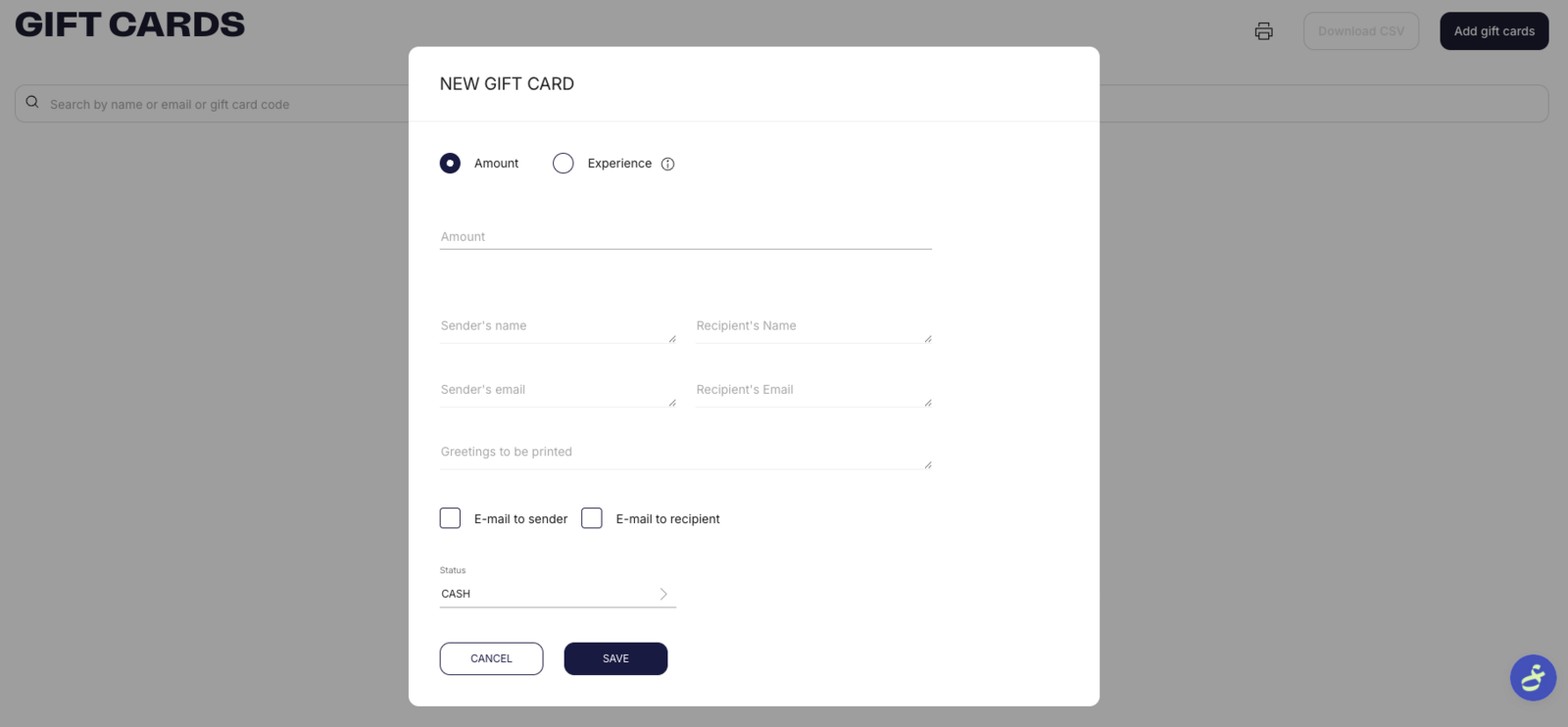
- Log in to Partner and go to Gift Cards. The Gift Cards page lists every existing gift card on the account.
- Click Add Gift Cards.
- Choose the gift card type. Select an amount to give a monetary value, or select an experience from the experiences already enabled for gift card sales.
- Enter the name and email address of the sender.
- Enter the name and email address of the recipient.
- Add a personal message. A message is optional and is printed on the gift card, for example "Happy Birthday" or "Merry Christmas".
- Choose the delivery method: email to the sender, email to the recipient, or both.
- Select the language of the gift card and the gift card email. Partner offers English and the localised language set for the account.
- Set the gift card status to Cash. Cash means the gift card has been issued and not yet used, and is the correct status for every new gift card. Redeemed means the gift card has already been used, so do not select Redeemed when creating a gift card. The status is used for internal reporting only and is not fiscal data.
- Click Save.
The new gift card appears at the top of the gift card list with its own unique gift card code, which is used to find, track, and redeem the gift card.
Resend an existing gift card
- Go to the LIST OF GIFT CARDS page in Partner.
- Search for the gift card by the sender's email address, the recipient's email address, or the gift card ID code.
- Click the edit icon next to REDEEM to open the gift card details.
- Check that the email addresses are correct.
- Check that Email to sender and Email to receiver are both selected.
- Click SAVE.
Partner sends a new copy of the gift card to the sender and to the recipient.
Gift card delivery limits
A gift card can only be sent to an email address. Partner cannot send a gift card to a phone number.