.jpg?width=200&height=45&name=Superb_Logo_RGB_Colour_Magic_Black%20(1).jpg)
A no-show fee is enabled per experience in Superb Partner, so activate the no-show fee on each experience you want it to apply to.
What you need
- Access to your Superb Partner account
- Permission to open Settings in Partner
- A reservation policy that describes your no-show fee. Without the no-show fee in your reservation policy, the fee cannot be charged.
Enable a no-show fee on an experience
- Click Settings in the top left-hand side of your dashboard.
- Select Online Reservations.
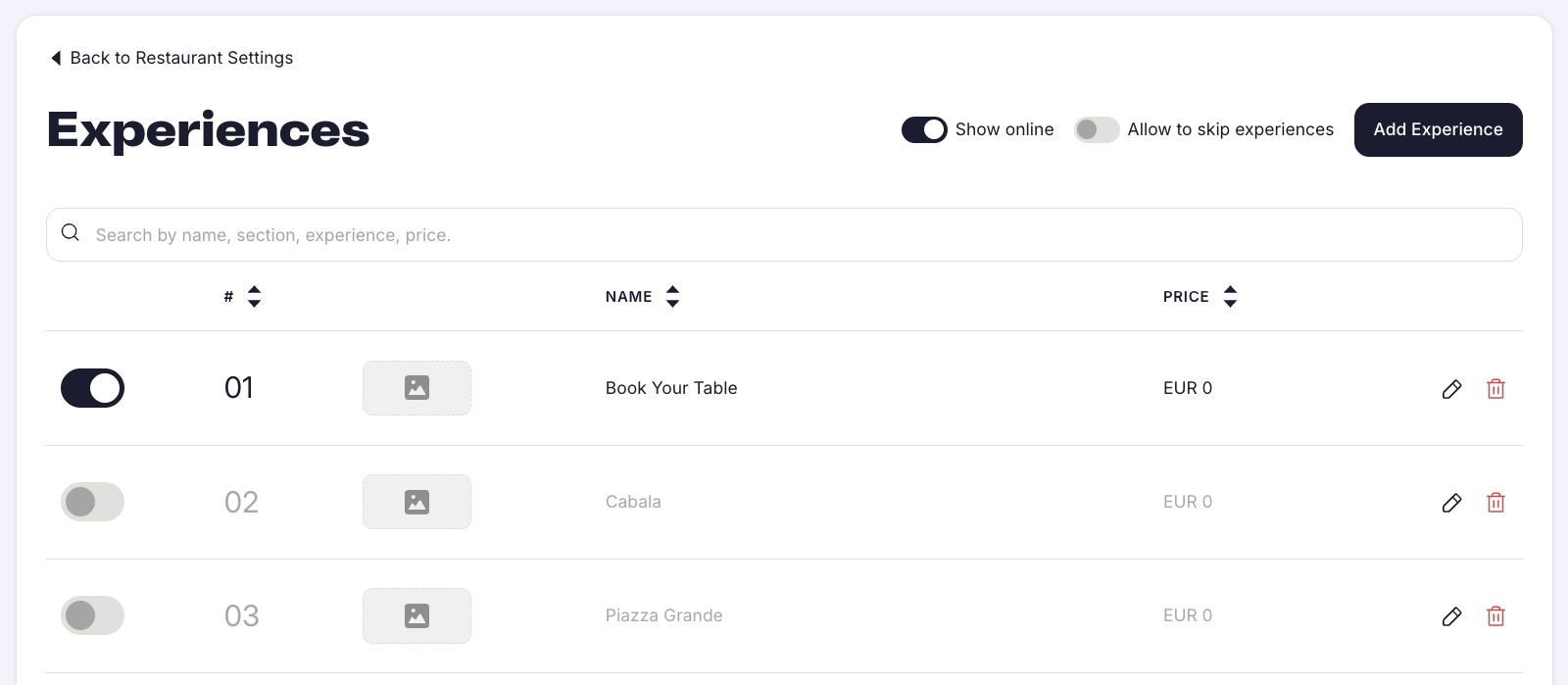
- Click Experiences.
- Click the experience you want to configure.
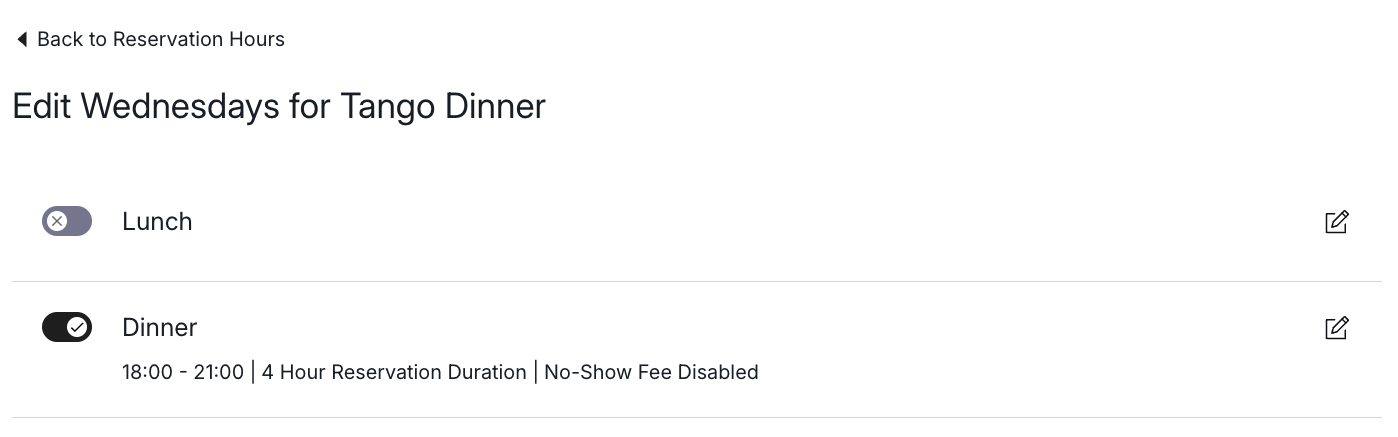
- Scroll down to the Times section, which shows No Show Fee Disabled.
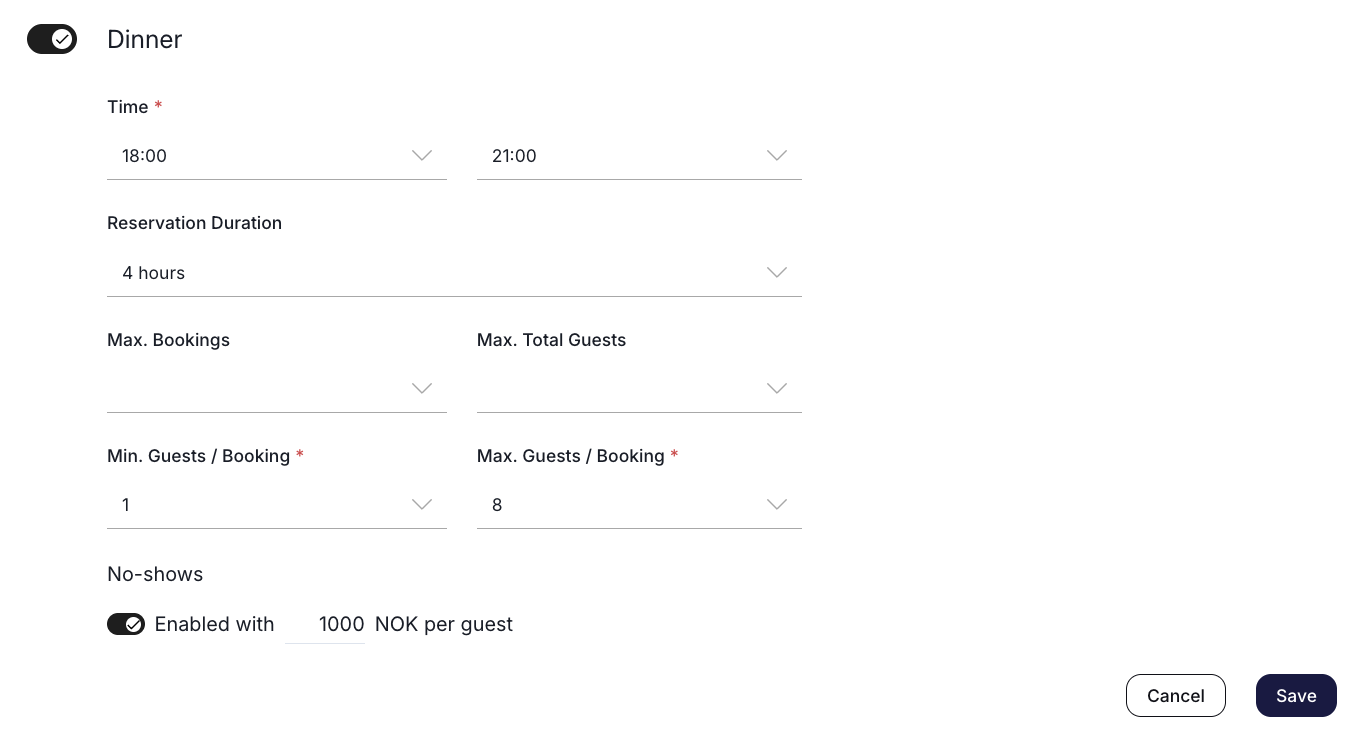
- Click the edit pen icon.
- Enable the no-show fee.
- Set the fee amount. The amount is in the currency selected for your restaurant, for example 1,000 NOK.
- Click Save.
Set no-show fees on more than one experience
Repeat the steps above on each experience that should have a no-show fee.
- No-show fees are set per experience, never globally.
- You choose which experiences have a no-show fee. A lunch experience can run without a fee while a dinner experience has one.
- You can set a different fee amount on each experience.
- You can limit the fee to specific days by enabling it only on the experiences that run on those days, for example Friday and Saturday experiences.
Charge a no-show fee to a guest
Setting a reservation to the No Show booking status does not charge the no-show fee. The charge has to be processed separately.
Make sure the no-show fee is enforceable
Describe your no-show policy in your reservation policy before you charge any guest. If the no-show policy is not clearly described in the reservation policy, the guest automatically wins a payment dispute.